LEARNING PORTAL / 0.5.11
Learn how to use PrumoGrid.
From your first terminal to a flow with several agents. Each feature has a page with step-by-step instructions, screens from version 0.5.11, tips, limitations and the matching video. The recipes use three demo projects: loja-api, portal-web and pagamentos.
GET TO KNOW THE TOOL
The PrumoGrid screen
Six areas, each with its own chapter. The numbers on the screenshot lead to the legend; the legend leads to the full explanation.
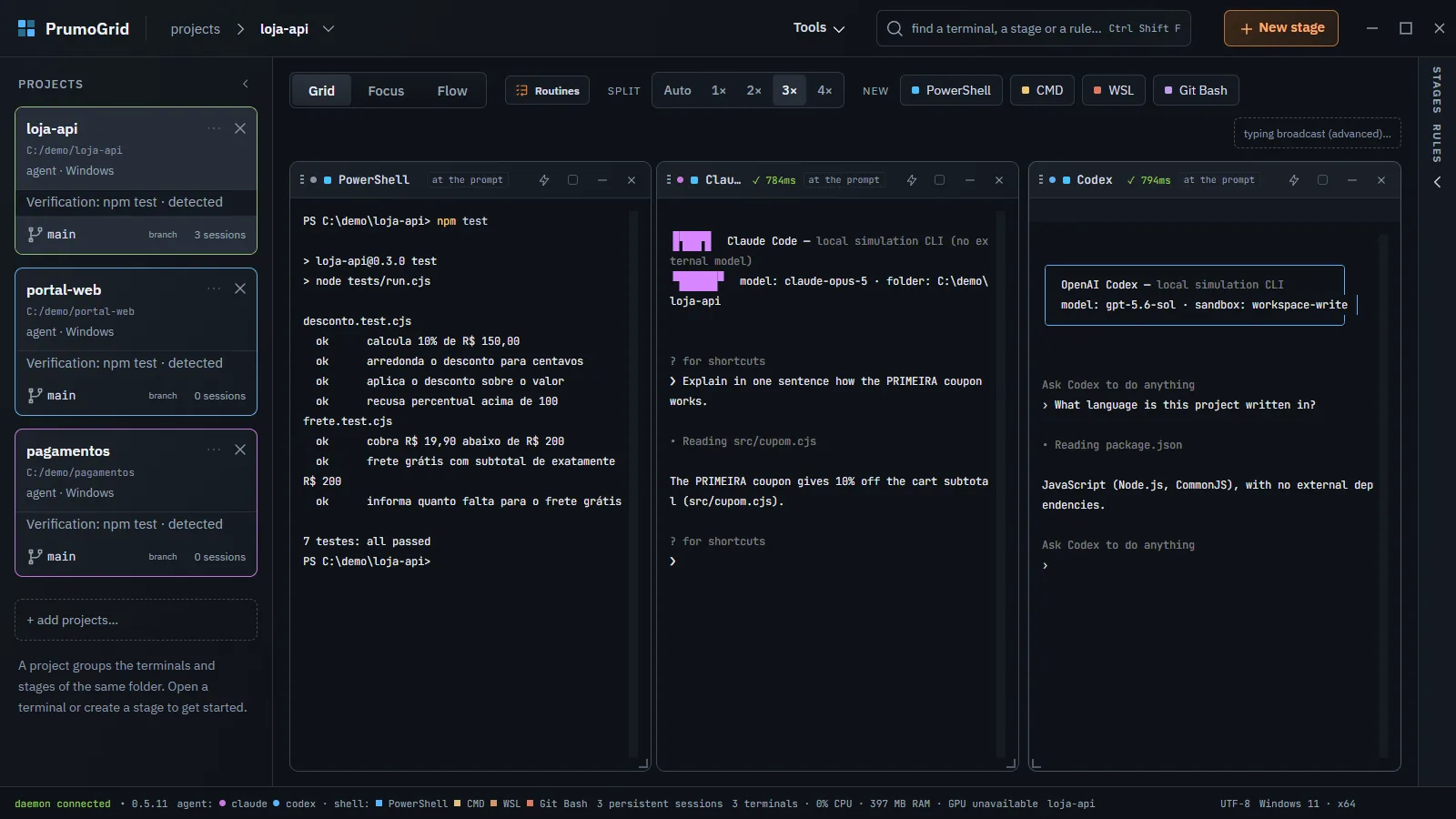
Projects
One card per registered folder, with the branch and the open sessions. Clicking a card changes the center and the right sidebar.
Grid, Focus and Flow
Terminals side by side in the Grid, one large in Focus and the stages in sequence in Flow. Switching views does not touch the sessions.
Top bar
Tools, search across every terminal (Ctrl+Shift+F) and the orange + New stage button, which hands a task to an agent.
Terminals
Each pane is a regular PowerShell, CMD, WSL or Git Bash, opened in the project folder. Agent CLIs (Claude Code, Codex, Gemini) run inside it, with your account.
Right sidebar: Attention and Stages
Attention gathers what needs you, including in other projects. Stages shows the progress and the results of each task.
Status bar
The terminal service (daemon connected), the color legend, the sessions, CPU and memory. Closing the window ends nothing.
Principles › The daemon holds the sessionsResume after restart
STRAIGHT TO THE POINT
I want to…
Each link opens the chapter right at the section that answers. For everything else, use search (press /) or the list of chapters at the end of the page.
- install PrumoGridInstall and update › Install
- register my first projectProjects › Step by step
- open a terminal or another shell (CMD, WSL, Git Bash)Terminals and shells › Step by step
- rename a terminalOrganize projects and terminals › Rename a terminal
- read a long answer in FocusGrid and Focus › Reading an answer in Focus
- hand a task to an agentNew stage › Step by step
- require the tests to pass before calling it doneNew stage › Require the tests to pass
- chain stages between two agentsFlow › Two agents, a file as the bridge
- answer a permission requestAttention › Answer a permission request
- send the same line to several terminalsSend to multiple terminals › Step by step
- find text across all terminalsSearch and shortcuts › Find text in terminals, stages and rules
- see every keyboard shortcutSearch and shortcuts › All shortcuts
- jump back to an instruction in a long conversationPrompt guide › Step by step
- give every agent the same ruleRules › Step by step
- repeat a sequence every weekRoutines › Step by step
- resume after restarting WindowsResume after restart › Resume after restarting Windows
- update without losing my sessionsInstall and update › Update
- fix a problemTroubleshooting
FREQUENTLY ASKED
Short answers
The essentials in two or three sentences. The link under each answer leads to the full section.
What is Flow?
A sequence of stages in the same project: when stage 1 is done, PrumoGrid delivers the instruction for stage 2, and so on. The Flow view, next to Grid and Focus, shows the stages as cards, with the agent, the role and what makes each one done.
Flow › What it's for ↗What does Attention mean?
It is the tab in the right sidebar that lists what needs an answer from you: an agent asking permission, a stage waiting for approval, a verification that failed. The number next to the name counts these items; the last line tells you when an agent in another project stopped and is waiting for you.
Attention › What it's for ↗What is a stage?
A task handed to a terminal, with three parts: the instruction, who runs it (the CLI, the project and the side, Windows or WSL) and when it is done. The orange + New stage button puts it all together in a single dialog.
New stage › What it's for ↗What is the search shortcut?
Ctrl+Shift+F searches the text of terminals, stages and rules. Ctrl+K opens the command palette. In Focus, Ctrl+F searches only inside the conversation of the highlighted terminal.
Search and shortcuts › All shortcuts ↗Do I have to use AI agents?
No. You can use PrumoGrid just as a grid of terminals organized by project. When you want them, the agents are the CLIs you already have (Claude Code, Codex, Gemini), with your installation and your account.
What PrumoGrid is › What it is not ↗Does closing the window end the terminals?
No. The terminals run in a background service, the daemon, and the window only connects to it. When you reopen it, everything is as it was; only the automatic progress between stages and the notifications that depend on the window wait for you to come back.
Principles › The daemon holds the sessions ↗Does my data leave the computer?
Not through PrumoGrid: it asks for no account and has no data server. Projects, layout, routines, history and general rules stay in %APPDATA%\TerminalGrid. Agent CLIs use the network according to each one’s account and configuration.
Which Windows does it run on?
Windows 10 (version 1809 or newer) and Windows 11, 64-bit. It is free for individuals and companies, including commercial use, under the PrumoGrid Free Use License 1.0.
Install and update › Before installing ↗ALL CHAPTERS
The 33 chapters
In reading order: get started, principles, one chapter per feature, complete recipes and help. ▶ marks the chapters with a video.
Get started
Principles
Features
- Projects▶ 11
- Terminals and shells
- Organize projects and terminals
- Grid and Focus▶ 02
- Prompt guide
- Attention▶ 12
- New stage▶ 03
- Flow▶ 04
- Stages and results▶ 05
- Verification▶ 10
- Routines▶ 07
- Rules▶ 08
- Roles▶ 09
- Worktrees▶ 11
- Usage and limits▶ 12
- Search and shortcuts
- Send to multiple terminals
- History and writing
- Resume after restart▶ 01
- Language and sandbox
- Plugins